
Setup Guide
DrawSplatTM MySQL Setup and How It Works
Keep your whiteboard on drawsplat.org and save private boards to a database you control. The same saving service works on Railway, DigitalOcean, or a server that can reach MySQL 8.
Choose where saving lives
- Railway: a managed deployment with the least server administration. Add a MySQL service and deploy the API from the repository’s
server/mysql-backenddirectory. - DigitalOcean Droplet: run the API, MySQL, and the included HTTPS proxy together with Docker Compose. You manage server updates and backups.
- DigitalOcean App Platform or an existing MySQL server: deploy the API separately and configure its database connection. Remote managed databases support verified TLS and a provider CA certificate.
The software is free; your provider charges for hosting, database resources, and storage. There is no default DrawSplat-hosted MySQL database. Ask your school’s technical support to deploy the service once, then teachers can use the connection wizard.
Detailed hosting, TLS, and backup instructions
How it works
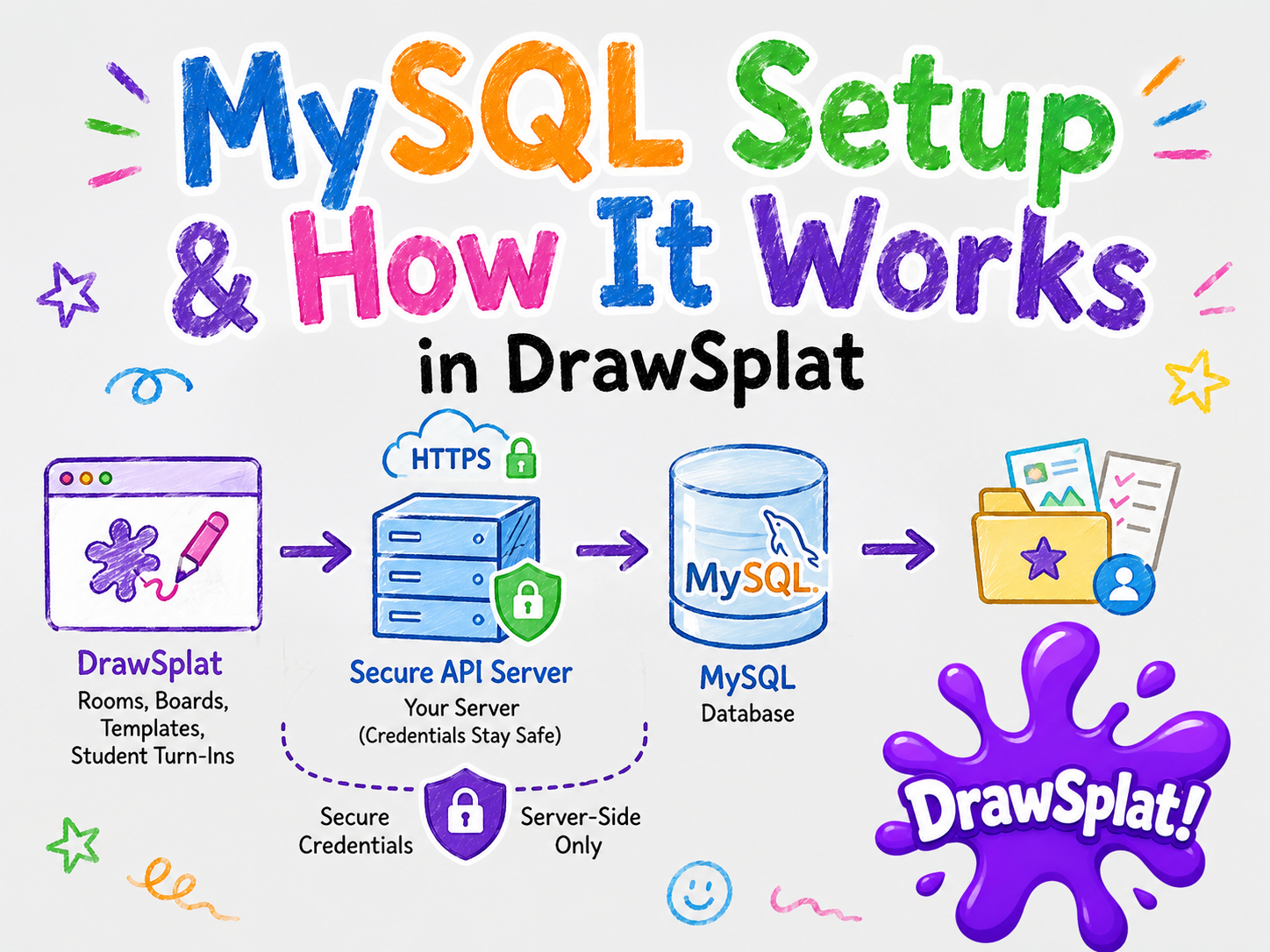
Whiteboard → HTTPS saving API → MySQL 8The browser never connects directly to MySQL. Database passwords and the server’s password pepper stay on the server. Teachers and students receive only the public API address and sign in with their own saving accounts.
Use current repository source and Docker or Node.js 22+. The v3.1.28 full download includes connected Save/Open and portable hosting configuration. Migrations run automatically; the technical guide explains database permissions and restricted runtime users.
Connect your whiteboard
- Open Teacher Admin’s MySQL Setup Wizard.
- Enter the public HTTPS API address, including
/api/drawsplat/mysql, such ashttps://your-api.example/api/drawsplat/mysql. - Choose Test & Enable Online Saving. The wizard checks both database readiness and the
private-boards-v1capability. A failed or incompatible test preserves your previous storage choice. - Create a teacher saving account in the wizard, or use one your school provided. This is separate from the Teacher Admin password. Student accounts must be school-provisioned.
- Open the whiteboard, choose File → Save online, and sign in when prompted.
- Reload and choose File → Open online board to check that your saved work opens.
Configure each browser, or use a school-provided launch link. Create Student Link includes the public saving connection and lesson settings; it does not share the teacher’s private board or include account tokens or database passwords.
What gets saved?
Your board’s pages, objects, and added audio/video notes are saved to your account. Saving is explicit: device autosave alone does not send changes online. Stopped recording drafts can recover locally after refresh, normally for 24 hours; choose Add to put a recording into the board before saving it online.
Each board keeps its current online copy until deleted. The default size limit is 20 MB per board; video notes increase upload size. Recordings currently remain inside board JSON. Separate object storage is a future improvement.
If another device saved a newer copy, DrawSplat rejects the competing save. Use Save File to keep your work, then open the online copy before continuing.
Which classroom features stay with Google?
Google shared-room sync, reusable template galleries, moderation, and student turn-in/teacher review are separate and are not routed to MySQL. Private online saving does not provide automatic collaboration or share a teacher’s board with students.
Advanced district modules exist in the backend, but require separate integration and operational validation. Legacy room/template/turn-in/session endpoints are restricted to district/campus administrators until scoped classroom membership is implemented.
Keep work safe and move hosts
- Use File → Save File for an independent board backup, especially before changing providers.
- Use File → Online account → Sign out on shared devices. Signing out revokes the account session but leaves device copies; follow your school’s cleanup routine.
- Keep the API on HTTPS, database credentials server-only, and remote database certificate verification enabled.
- Arrange off-server database backups and test restoring them. The guide includes a Docker backup example.
- To change hosts, restore the database backup and preserve the same password pepper, then update the public API address in the wizard. Changing that address alone does not migrate data.
- For a fresh empty database, create new accounts, use Load File for saved board files, then Save online.