Do you feel scattered when you switch between different artificial intelligence tabs and lose your best prompts? This course will give you the opportunity to explore a variety of Generative Artificial Intelligence (Gen AI) tools in one place. The series will streamline your workflow using structured prompting, personalized instructions, and team-based projects. You also get 50 education-related prompts and 100 prompts for K-12 education. There are bonus sections with even more resources included. What's more, you c…
Do you feel scattered when you switch between different artificial intelligence tabs and lose your best prompts? This course will give you the opportunity to explore a variety of Generative Artificial Intelligence (Gen AI) tools in one place. The series will streamline your workflow using structured prompting, personalized instructions, and team-based projects. You also get 50 education-related prompts and 100 prompts for K-12 education. There are bonus sections with even more resources included. What's more, you can complete this course in any sequence you want, jumping to your favorite parts first.
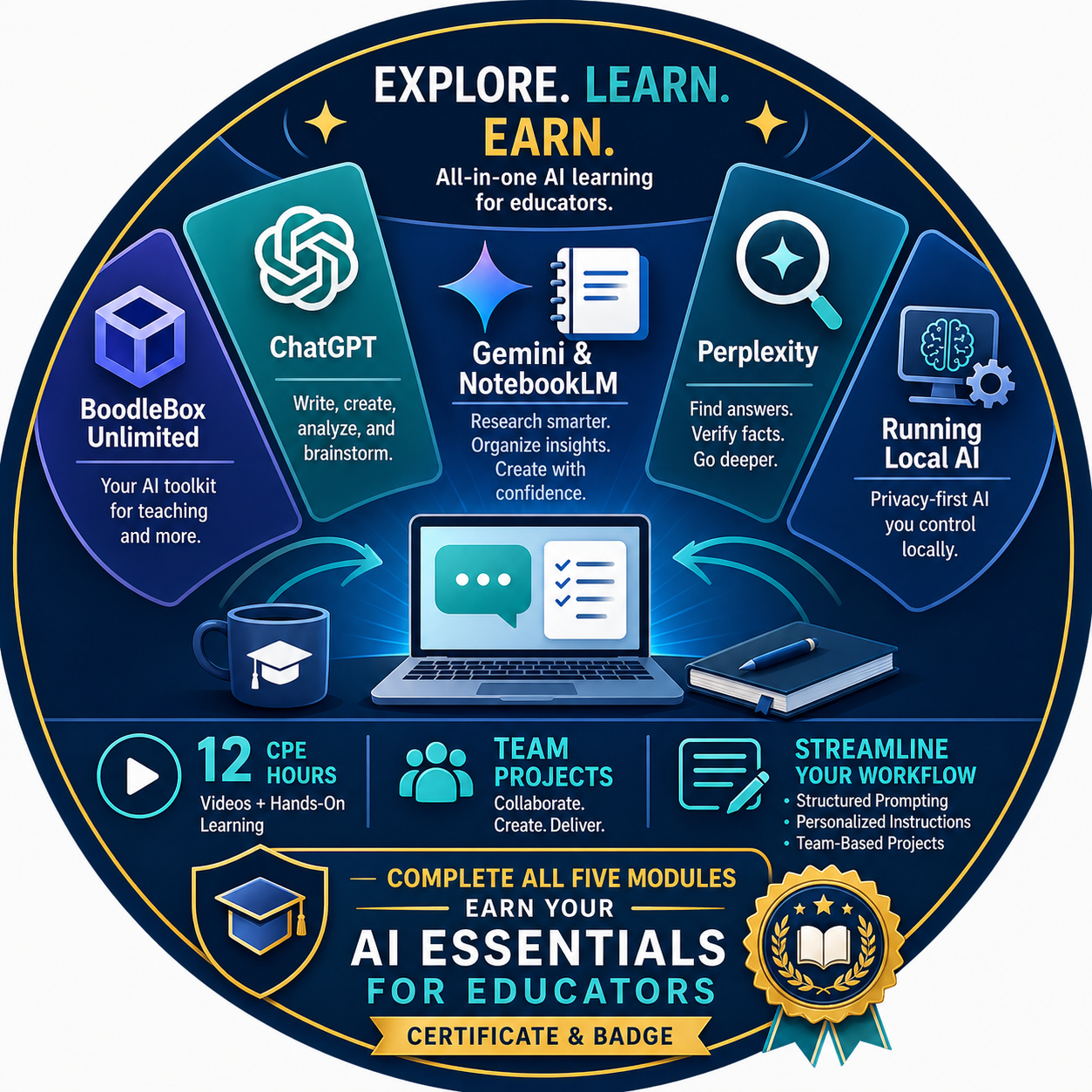
Earn 12 CPE hours for videos and hands-on learning that move you from an AI beginner to an architect of professional tools. Included are BoodleBox Unlimited with free code, ChatGPT, Gemini and NotebookLM, Perplexity, and Local AI. The focus in the first few is to provide you an overview of various chat models. The final module is intended for you to set up Gen AI on a local machine or device, provided it is powerful enough.
In this course, you will have the opportunity to earn CPE hours with individual certificates for these Generative AI tools:
BoodleBox Unlimited
ChatGPT
Gemini and NotebookLM
Perplexity
Running Local AI
When you complete all five modules, you receive the AI Essentials for Educators certificate and digital badge.
Do you feel scattered when you switch between different artificial intelligence tabs and lose your best prompts? This course gives you the chance to explore a variety of Generative Artificial Intelligence (Gen AI) tools in one place. You will streamline your workflow using structured prompting, personalized instructions, and team-based projects.
Earn 12 CPE hours through videos and hands-on learning that move you from an AI beginner to an architect of professional tools. Along the way, you will have the chance to earn an individual certificate for each tool:
BoodleBox Unlimited
ChatGPT
Gemini and NotebookLM
Perplexity
Running Local AI
When you complete all five modules, you receive the AI Essentials for Educators certificate and badge.
Lesson 2
Course Overview
View
Do you feel scattered when you switch between different artificial intelligence tabs and lose your best prompts? This course will give you the opportunity to explore a variety of Generative Artificial Intelligence (Gen AI) tools in one place. The series will streamline your workflow using structured prompting, personalized instructions, and team-based projects. Earn 12 CPE hours for videos and hands-on learning that move you from an AI beginner to an architect of professional tools. Included are BoodleBox Unlimited with free code, ChatGPT, Gemini and NotebookLM, Perplexity, and Local AI.
Module One - BoodleBox Unlimited
Work inside one platform that gives you access to many leading AI models without juggling multiple subscriptions or browser tabs. You will set up your account using the free access code included with this course, build "bots" tuned for specific instructional tasks, and use BoodleBox's team features to collaborate with colleagues on shared projects. By the end, you will have a multi-model workspace ready to use with your team.
Module Two - ChatGPT
Move beyond casual prompting and treat ChatGPT as a structured tool for instructional design, drafting, and feedback. You will write reusable prompts, set up custom instructions that match your role and grade level, and organize your work inside a Project space that keeps your best prompts and outputs in one place. Hands-on practice focuses on real classroom artifacts you can use the next day.
Module Three - Gemini and NotebookLM
Pair Google's flagship AI assistant with its source-grounded research notebook to do work that stays anchored in trusted documents. You will use Gemini for everyday drafting and Google Workspace integration, then shift into NotebookLM to build notebooks from your own materials, generate study guides and audio overviews, and ground responses in cited sources. This module is especially useful when you work with curriculum documents, research articles, and policy texts.
Module Four - Perplexity
Use Perplexity as your live-web research partner when you need current information with citations attached. You will run focused searches, organize your work into Spaces, and refine answers through follow-up questions that go deeper than a single query. The module closes with strategies for verifying sources and teaching students to do the same.
Module Five - Local AI
Run AI on your own machine to keep sensitive data off the public internet and give your school a privacy-respecting option for student work. You will set up a free local model, run prompts offline, and learn when local AI is the right fit and when a cloud-based tool serves you better. This module gives you a defensible answer for parents, administrators, and IT staff who ask about data privacy.
Lesson 3
About the Course Developer
View
Miguel Guhlin is Director of Professional Development at the Texas Computer Education Association (TCEA), where he designs and leads professional learning for educators, instructional coaches, and campus leaders across Texas. His work is grounded in John Hattie's Visible Learning research, and he draws on frameworks including the ALDO instructional design model, the TCEA EIIR Coaching Cycle, and SOLO Taxonomy to help educators connect evidence-based strategies with practical classroom application.
Miguel has presented at TCEA, Learning Forward Texas, and regional education service centers, and he continues to develop resources and tools that make research accessible and actionable for educators at every level.
Access the AI Essentials for Educators Library with 100 prompts for K-12 and Office situations
View
Lesson 5
View 50 Image Prompts for Classroom Use
View
Lesson 6
Practice On Your Own: Prompt Library
View
Assignment
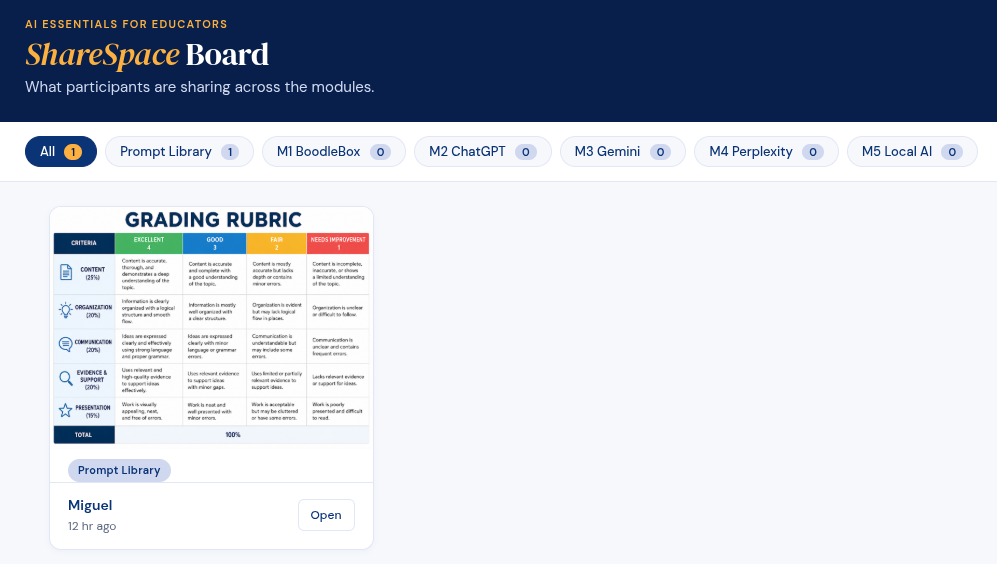
Take any one of the available prompts and run it through your favorite Gen AI tool and/or image generator. Then, share the result via the ShareSpace below.
Introducing the ShareSpace
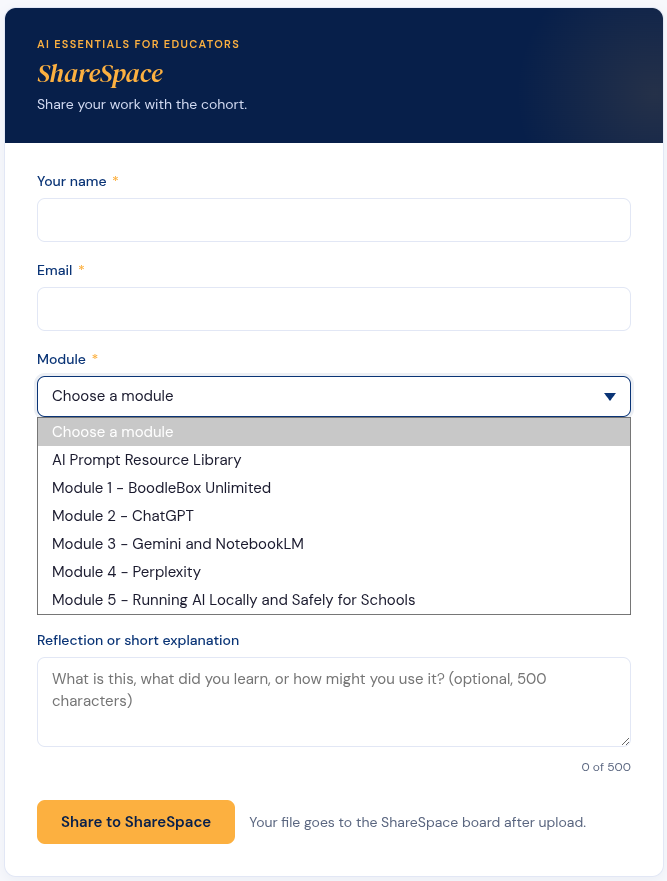
For all the Practice on Your Own activities, as well as anything new you would like to share, please use the TCEA ShareSpace Board (similar to Padlet but free) to share your creation. Note: Be sure to select the correct Module in the dropdown.
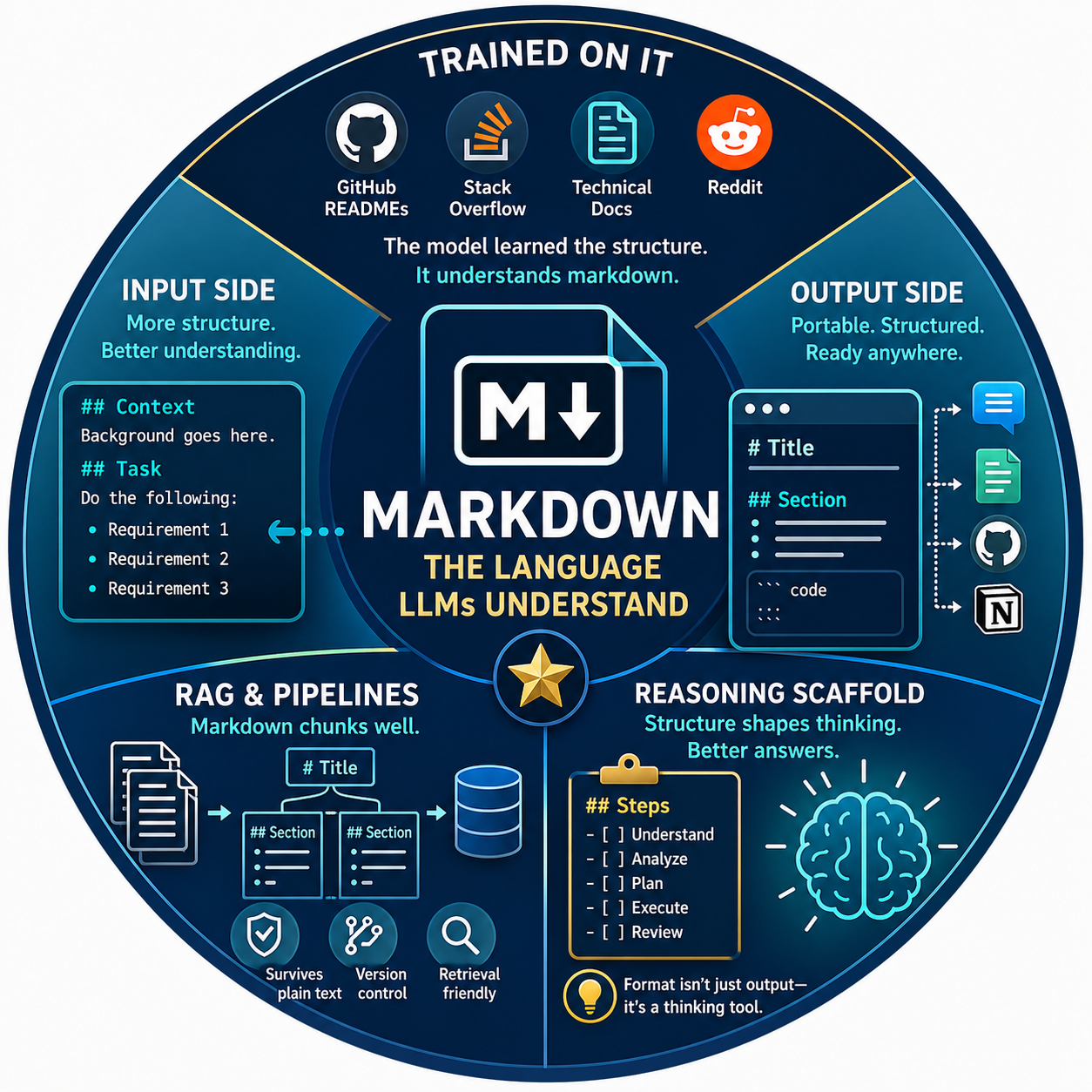
Markdown is important because LLMs were trained on massive amounts of it — GitHub READMEs, Stack Overflow, technical docs, Reddit. The model learned that # Header signals "this is a topic," **bold** signals "this matters," and bullet lists signal "discrete items." So markdown isn't just formatting — it's a structural language the model already understands.
Why it matters in practice:
Input side: Markdown-formatted prompts parse more reliably. Headers like ## Context and ## Task help the model separate what's background from what you actually want done. Lists prevent it from collapsing your three requirements into one fuzzy paragraph.
Output side: Asking for markdown gets you portable, structured responses you can paste anywhere — chat, docs, blog posts, GitHub, Notion — without reformatting.
RAG and pipelines: Markdown chunks well. Headers give natural split points, and the syntax survives plain-text storage, version control, and retrieval systems without breaking.
Non-obvious one: Markdown doubles as a cheap reasoning scaffold. If you ask the model to think in ## Steps or - [ ] checklist format, you're not just styling output — you're nudging it into a more structured reasoning pattern, which often improves accuracy on multi-part tasks. The format shapes the thinking, not just the presentation.
Get Access to the Tools and Tutorial
In the space below, you will find a Markdown to HTML Converter you can use again and again. Below it, you will find a detailed tutorial. This is also available via the open web, so bookmark the location.
Markdown Basics for GenAI Tools
A practical, copy-ready tutorial for writing clean Markdown that works well in ChatGPT, Claude, Gemini, NotebookLM, Perplexity, GitHub, blogs, LMS pages, and other AI-powered tools.
Try It First: Markdown to HTML Converter
Type Markdown on the left. See the formatted preview on the right. Copy the generated HTML below.
Markdown Input
HTML Preview
Raw HTML Output
Note: This lightweight converter supports common Markdown patterns used in prompts, tutorials, tables, checklists, and classroom materials. For production publishing workflows, use a full Markdown parser.
Why Markdown Matters
Markdown is a simple way to format text using plain characters. It helps GenAI tools understand structure, sections, examples, source text, and reusable output patterns.
Clearer prompts Use headings, bullets, and code blocks so AI tools can follow your instructions.
Cleaner outputs Ask for Markdown when you need content that is easy to copy, revise, and publish.
Reusable resources Turn AI responses into rubrics, tables, handouts, checklists, blog posts, and LMS pages.
Simple idea: Markdown is clean formatting for humans and AI.
1. Headings: Organize Your Ideas
Use headings to divide content into clear sections.
# Main Title
## Major Section
### Subsection
#### Detail Section
Example
# Cell Respiration Lesson

## Learning Goal
Students will explain how cells release energy from glucose.

## Vocabulary
- Glucose
- Oxygen
- Carbon dioxide
- ATP

## Exit Ticket
Explain why cells need oxygen during respiration.
Best practice: Use one # heading for the main title. Use ## and ### for the rest.
2. Paragraphs: Keep Them Short
Markdown paragraphs are regular text separated by blank lines.
This is one paragraph.

This is another paragraph.
Instead of this
Students will work in groups to read the article answer questions discuss their answers and then write a summary of what they learned about renewable energy sources and their impact on communities.
Use this
Students will work in groups to read the article.

They will answer discussion questions with their group.

Then, each student will write a short summary about renewable energy and its impact on communities.
3. Bold and Italics: Add Emphasis
**Important idea**

*Emphasized phrase*
Example
**Claim:** School start times should be later.

*Reason:* Students need enough sleep to learn effectively.
Best practice: Do not overuse bold. If everything is bold, nothing stands out.
4. Bulleted Lists: Use for Simple Items
- Pencil
- Notebook
- Highlighter
- Chromebook
Example Prompt
Create a student-friendly checklist for this lesson.

Include:
- Materials
- Vocabulary
- Partner task
- Independent practice
- Exit ticket
5. Numbered Lists: Use for Steps
1. Read the passage.
2. Highlight key evidence.
3. Discuss with a partner.
4. Write a one-paragraph response.
GenAI Prompt Example
Create a lesson plan using these steps:

1. Begin with a hook.
2. Introduce three vocabulary terms.
3. Model one example.
4. Give students guided practice.
5. End with an exit ticket.
6. Blockquotes: Highlight Source Text or Notes
> This is a quoted passage or highlighted note.
Example
Read this sentence from the article:

> The river became polluted after chemicals entered the water supply.

Explain the cause-and-effect relationship in student-friendly language.
Blockquotes are useful when you want the AI to treat text as a passage, quote, note, or student sample.
7. Horizontal Lines: Separate Sections
---
Example
## Teacher Notes

Use this section for planning.

---

## Student Version

Use this section for student-facing directions.
8. Inline Code: Mark Commands or Exact Text
Use `Ctrl + C` to copy.

The file is named `lesson-plan.md`.
Example
In Mermaid, start a flowchart with `flowchart TD`.
9. Fenced Code Blocks: Preserve Exact Formatting
Code blocks are one of the most important Markdown features for GenAI tools.
```text
Put exact text here.
```
Use code blocks to preserve line breaks, indentation, prompts, source text, examples, and code.
Markdown Code Block Example
```markdown
# Lesson Title

## Objective
Students will identify the main idea of a nonfiction passage.

## Activity
- Read the passage.
- Highlight key details.
- Write a summary.
```
Separate your instructions from your source material.
You are helping me create a student-friendly reading activity.

## Task
Create a 6th-grade reading activity from the source text.

## Requirements
- Use simple language.
- Include 5 vocabulary words.
- Include 3 comprehension questions.
- Include 1 short writing prompt.

## Source Text
```text
Paste the article, passage, notes, or transcript here.
```
Why this works: The AI can clearly identify the role, task, requirements, and source text.
| Term | Student-Friendly Definition | Example |
|---|---|---|
| Claim | What you believe or argue | School lunches should be healthier. |
| Evidence | Facts that support your claim | A survey showed students want more fruit. |
| Reasoning | Explanation that connects evidence to claim | More fruit can help students make healthier choices. |
Term
Student-Friendly Definition
Example
Claim
What you believe or argue
School lunches should be healthier.
Evidence
Facts that support your claim
A survey showed students want more fruit.
Reasoning
Explanation that connects evidence to claim
More fruit can help students make healthier choices.
12. Tables for GenAI Prompts
Tables are excellent for giving AI tools structured requirements.
Create a rubric using this structure:

| Criteria | 4 - Advanced | 3 - Proficient | 2 - Developing | 1 - Beginning |
|---|---|---|---|---|
| Claim | Clear, specific, and arguable | Clear and arguable | Somewhat clear | Missing or unclear |
| Evidence | Strong, relevant evidence | Relevant evidence | Limited evidence | Little or no evidence |
| Reasoning | Explains evidence thoroughly | Explains evidence clearly | Explanation is basic | Explanation is missing |
Best Uses for Tables
Rubrics
Comparison charts
Vocabulary lists
Lesson plan outlines
Assessment blueprints
Choice boards
Best practice: Keep table cells short. Long paragraphs inside table cells are hard to read and hard to revise.
13. Checklists
Use - [ ] for unchecked boxes and - [x] for checked boxes.
- [ ] Read the article.
- [ ] Highlight three important details.
- [ ] Write one question.
- [ ] Share with a partner.
Example Prompt
Create a student checklist for revising an argumentative paragraph.

Use this format:

- [ ] My claim is clear.
- [ ] I included evidence.
- [ ] I explained how the evidence supports my claim.
- [ ] I checked spelling and punctuation.
14. Links and Images
Links
[Link Text](https://example.com)
Example
Read more at [NASA Climate Kids](https://climatekids.nasa.gov/).
Best practice: Use descriptive link text. Avoid “click here.”
Images

Example

15. Escaping Markdown Characters
Sometimes you want to show Markdown symbols without activating them. Use a backslash before the symbol.
\# This will not become a heading.

\* This will not become a bullet.
16. Common Markdown Mistakes
Mistake
Problem
Fix
No blank line between sections
Text may run together
Add blank lines
Unclosed code block
Everything after it may look like code
Add closing backticks
Tables with uneven columns
Table may break
Match the number of cells
Huge table cells
Hard to read
Keep cells short
Too many heading levels
Structure becomes confusing
Mostly use #, ##, and ###
Smart quotes in code
Code may break
Use plain quotes
17. Prompt Template: Ask for Clean Markdown Output
Create the output in clean Markdown.

## Requirements
- Use `#`, `##`, and `###` headings.
- Use short paragraphs.
- Use bullets for lists.
- Use tables only when they make information easier to scan.
- Put copy-ready examples inside fenced code blocks.
- Do not use decorative symbols.
- Do not use emojis unless requested.
- Make the result easy to copy into a blog, LMS, Google Doc, or GitHub page.

## Topic
[Insert your topic here]

## Audience
[Insert your audience here]

## Purpose
[Insert what the output should help the reader do]
18. Prompt Template: Convert Notes into Markdown
Convert these rough notes into clean Markdown.

## Requirements
- Add a clear title.
- Organize ideas under headings.
- Use bullets for lists.
- Create a table if it helps compare ideas.
- Keep wording clear and concise.
- Preserve important details.

## Rough Notes
```text
Paste notes here.
```
19. Prompt Template: Create a Markdown Table
Turn this information into a clean Markdown table.

## Requirements
- Use short column headings.
- Keep each cell brief.
- Make the table easy to scan.
- Do not include long paragraphs inside cells.

## Information
```text
Paste information here.
```
20. Prompt Template: Create a Rubric in Markdown
Create a student-friendly rubric in Markdown.

## Audience
[Grade level or student group]

## Assignment
[Describe the task]

## Requirements
- Use a Markdown table.
- Include 4 performance levels.
- Use student-friendly language.
- Keep each cell short.
- Add a brief self-reflection checklist after the rubric.

## Criteria
```text
Paste criteria here.
```
21. Prompt Template: Create a Lesson Plan in Markdown
Create a lesson plan in clean Markdown.

## Topic
[Insert topic]

## Grade Level
[Insert grade level]

## Time
[Insert lesson length]

## Requirements
- Use clear headings.
- Include a learning objective.
- Include vocabulary.
- Include teacher steps.
- Include student tasks.
- Include checks for understanding.
- Include an exit ticket.
- Use tables only where helpful.
22. Before-and-After Example
Rough Prompt
make me a lesson about main idea with questions and stuff for 5th grade
Improved Markdown Prompt
Create a 5th-grade lesson on identifying the main idea in nonfiction text.

## Requirements
- Use clean Markdown.
- Include a learning objective.
- Include 3 vocabulary terms.
- Include teacher modeling steps.
- Include guided practice.
- Include independent practice.
- Include 5 comprehension questions.
- End with an exit ticket.

## Format
```markdown
# Lesson Title

## Learning Objective

## Vocabulary

## Teacher Modeling

## Guided Practice

## Independent Practice

## Questions

## Exit Ticket
```
The improved version gives the AI a clear grade level, topic, output format, checklist, and Markdown structure to follow.
Use code blocks for exact text, prompts, code, or templates.
Use tables for comparisons, rubrics, and structured information.
Keep table cells short.
Separate instructions from source material.
Label code blocks when possible.
Avoid decorative formatting.
Make the output easy to copy and reuse.
Practice Activity
Use Markdown to create a prompt for a GenAI tool. Your prompt should include a title, task, audience, requirements, source text, and requested output format.
# GenAI Task Prompt

## Task
Create [type of output] about [topic].

## Audience
This is for [grade level or audience].

## Requirements
- Requirement one
- Requirement two
- Requirement three

## Source Text
```text
Paste source text here.
```

## Output Format
Use clean Markdown with:
- Headings
- Bullets
- A table if helpful
- A short summary
Final Tip
Markdown works best when it is simple. Clear headings, short lists, clean tables, and well-labeled code blocks help both people and GenAI tools understand exactly what you want.